

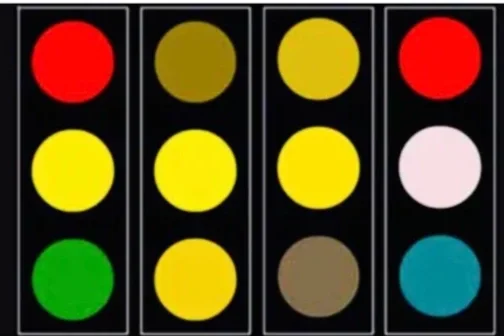
What happens when someone can’t reliably tell red from green? They still drive safely through intersections. They still navigate busy city streets. Not because they magically see color differently, but because traffic lights have something most digital products don’t: another way of communicating.
This is a core lesson for accessible color use in your website, SaaS product, analytics dashboard, or brand system. Color can carry meaning. Color just cannot be the only thing doing that job.
How Traffic Lights Solved an Accessibility Problem a Century Ago
Did you know that almost 300 million people worldwide have some form of red‑green color vision deficiency, and yet traffic lights generally work for them.
The trick is simple:
Red is always on top.
Yellow is always in the middle.
Green is always on the bottom.
Horizontal lights follow the same logic: red on the left, green on the right, yellow in the center. That position standard is consistent across most of the world.
So people with red‑green colorblindness are not relying on color alone. They use:
Position: “Top is stop, bottom is go.”
Shape and layout: The vertical stack or horizontal bar is predictable.
Context: Intersections always use the same pattern.
Color and position are saying the same thing. If one channel fails for you, the other still works.
That’s the accessibility principle you need in digital design: Color can support meaning, but color alone cannot carry meaning.
If “red means error,” it also needs:
A consistent position
Or a clear label
Or a recognizable icon/shape
Traffic lights nailed this over 100 years ago. Yet many modern dashboards, forms, and brand systems still treat color as the only signal that matters.
What Red‑Green Colorblindness Actually Looks Like
To design better, you need a basic model of how colorblind users see your work.
The two most common types of red‑green colorblindness are:
Protanopia: reduced sensitivity to red light
Deuteranopia: reduced sensitivity to green light
People with these conditions usually do not see “no color.” They see:
Reds and greens collapsing into similar yellow‑brown or khaki tones
Less contrast between reds, greens, and browns
Certain bright colors looking dull or muddy
Now imagine a typical interface:
Red “error” banner vs. green “success” banner
Red “failing” KPI vs. green “healthy” KPI on a dashboard
Red “unsubscribe” vs. green “confirm subscription” buttons
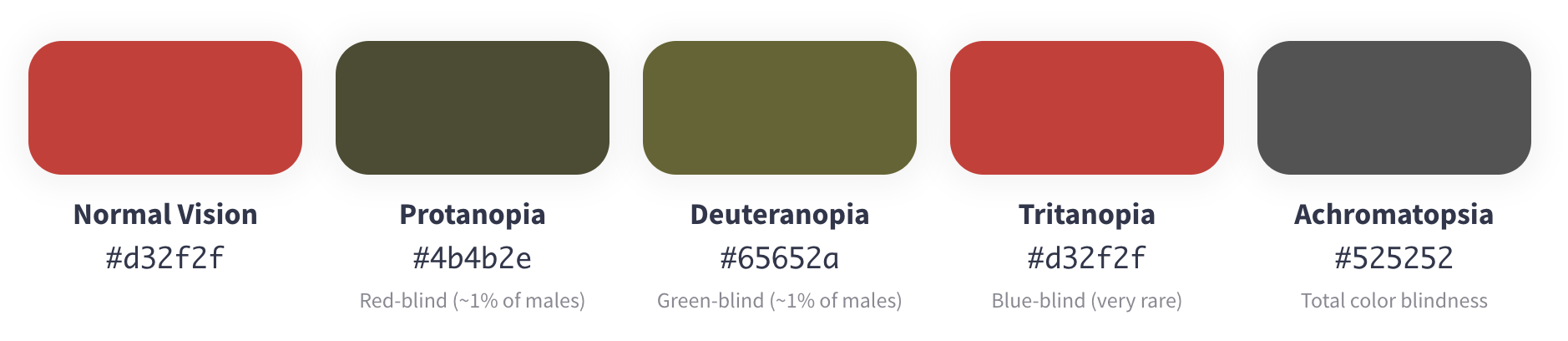
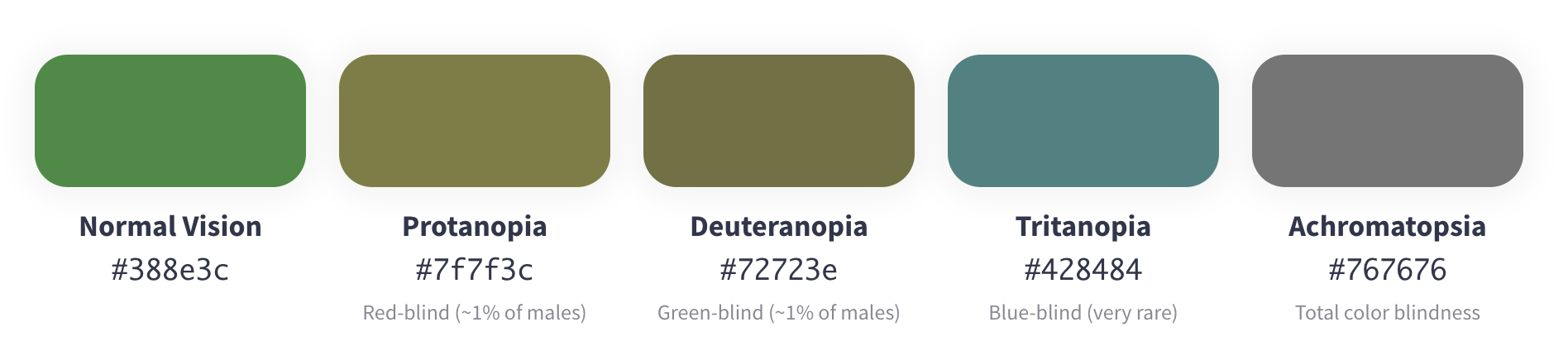
If those reds and greens share about the same lightness, they almost merge. When I compare a common “error red” (#D32F2F) and a common “success green” (#388E3C), their relative luminance ratio is 1.21:1. Translated: they’re nearly the same brightness. Below is an example of each of the colors in varying colorblindness and for those who can’t distinguish the hue, they look like the same color.
This ends up being a problem in interfaces because red and green typically are the default colors designers reach for whenever they need to convey:
good/bad
on/off
pass/fail
increase/decrease.
It's cultural shorthand that most designers don't even question it.
Where Red‑Green Color Reliance Fails in the Real World
This isn’t a niche error only small business owners make. Big, well‑resourced products miss this all the time.
Common failure patterns include:
1. Analytics and project dashboards
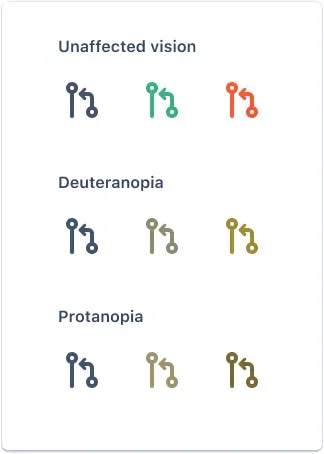
Atlassian's own design team wrote about this exact problem in a great case study on redesigning their Jira pull request icons. Their original three status icons: Open, Merged, and Declined — used only color (grey, green, and red) to distinguish between them. Which meant a colorblind user scanning a Jira board couldn't tell at a glance whether a pull request had been merged (good) or declined (bad).
To the right, we are showing visual proof they published showing how those original icons appeared to viewers with different types of color vision.
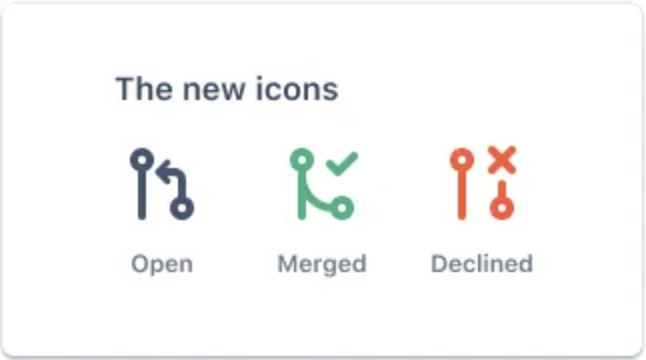
For a red-green colorblind user, the "merged" and "declined" icons — which mean completely opposite things — look almost identical. That's a problem when you're scanning a project board trying to figure out which pull requests succeeded and which failed. Jira redesigned the new icons as shown to the right.
2. Stoplight status systems
The familiar green = “on track,” yellow = “at risk,” red = “off track” model is everywhere in corporate reporting.
In a colorblind simulation, those three statuses can look like three slightly different shades of the same color.
3. E‑commerce indicators and sale badges
Red “sale” badges on green product photos.
Red “out of stock” text next to green “in stock” text with no icons or labels.
Green “you saved $X” vs. red “no discount” pricing, again with no other cues.
All of these ask colorblind users to make purchase decisions based on a signal they literally can’t see.
4. Form validation and error handling
Input fields that only show “error” by switching the border to red.
“Success” messages that are only indicated by turning text green.
Inline errors that rely on a tiny red dot or outline without any wording.
If you’re colorblind, these forms are frustrating at best and totally blocking at worst.
Other Types of Colorblindness (And Why Red‑Green Fixes Still Help)
Red‑green colorblindness is the most common, but it’s not the only case to consider.
Less common types include:
Tritanopia (blue‑yellow colorblindness):
Around 1 in 10,000 people.
Difficulty distinguishing blue from green and yellow from red.
Charts or UIs that use blue vs. yellow or blue vs. green as the only difference can fail here.
Achromatopsia (total colorblindness):
Very rare: about 1 in 33,000 people.
The world appears in shades of gray.
Any system based purely on color is unusable; only shape, text, position, and contrast matter.
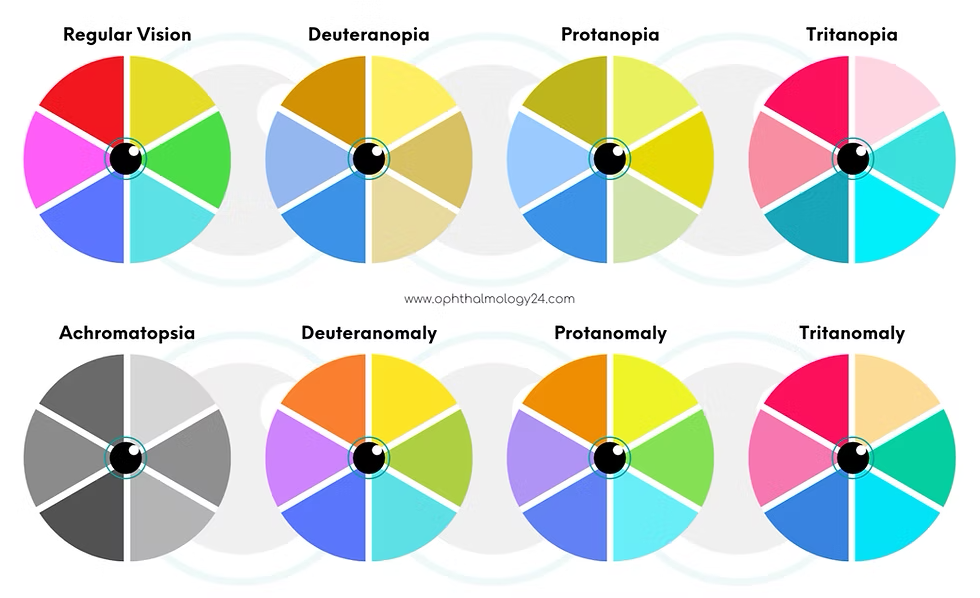
If you stop relying on a single color pair to communicate meaning, you automatically improve accessibility for nearly all forms of color vision deficiency.
Build redundancy into your signals, and you don’t have to memorize every subtype of colorblindness to do the right thing.
The Core Fix – Add Redundant Signals Anywhere Color Means Something
You do not need to throw out your palette or stop using color for status. You just need to stop asking color to work alone.
Wherever color carries meaning, add at least one backup signal:
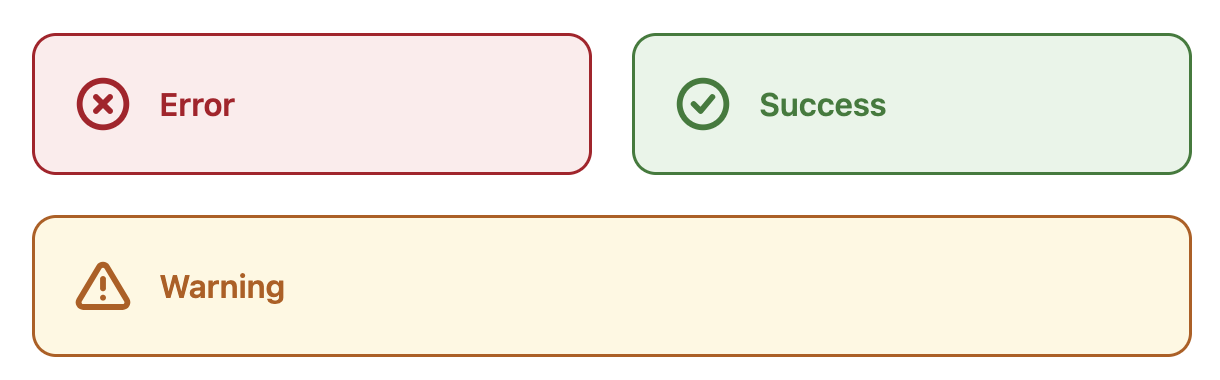
1. Pair color with icons
Error: red plus an X icon or warning triangle.
Success: green plus a checkmark icon.
Warning: yellow plus an exclamation mark.
Even if someone sees all colors as gray, they can still recognize the icon.
2. Pair color with text labels
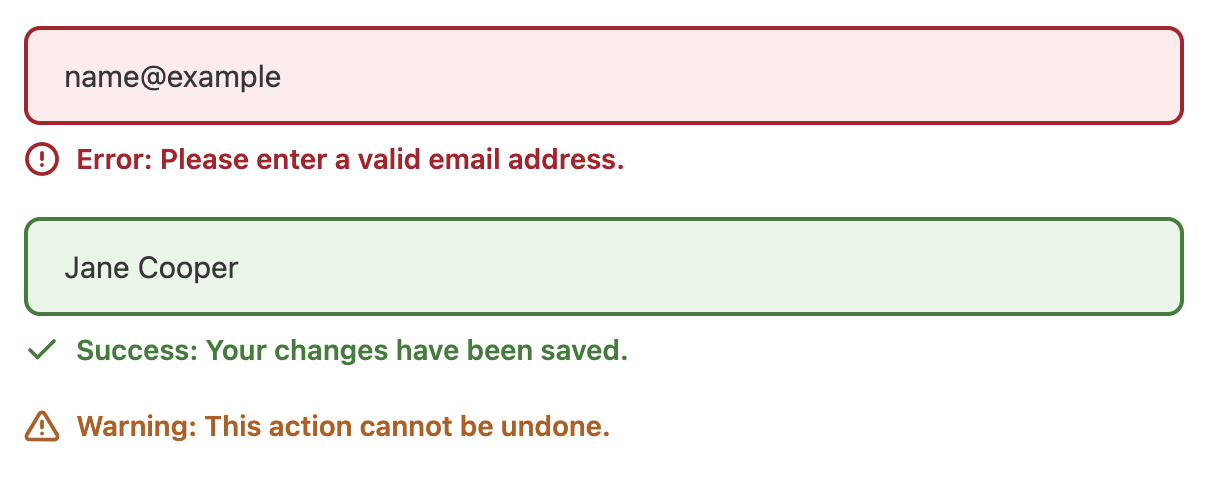
“Error: Please enter a valid email address.”
“Success: Your changes have been saved.”
“Warning: This action cannot be undone.”
Don’t make users infer meaning from color. Say what you mean in plain language.

3. Pair color with position or shape
Borrow from traffic lights:
Negative state always on the left, positive on the right.
Or negative on top, positive on bottom.
Use distinct shapes:
Octagon or stop‑sign shape for danger.
Circle or checkmark badge for success.
Triangle for warnings.
Once users learn your pattern, they can rely on it even if color fails.

4. Pair color with patterns and line styles
For charts:
Use stripes, dots, and solids in addition to color fills.
Use solid, dashed, and dotted lines, not just “red vs. green” lines.
This is standard in scientific and financial visualization for a reason: it works in grayscale printouts and for colorblind readers.
5. Rethink default red‑green status colors
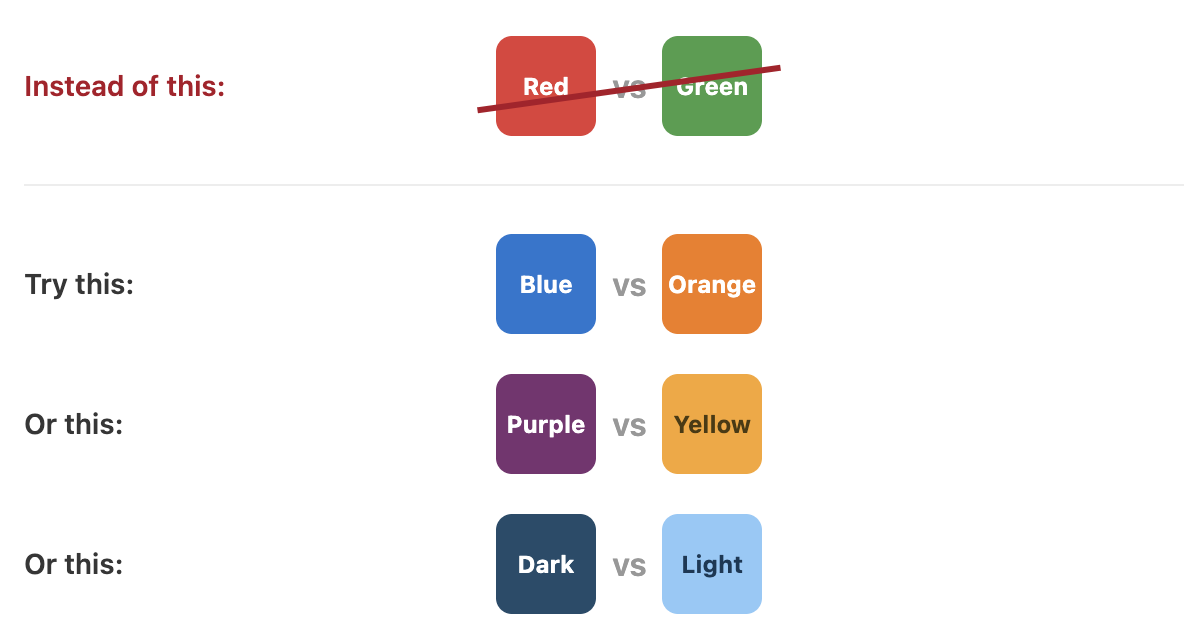
You don’t have to use red for “bad” and green for “good.”
Consider pairings like:
Blue vs. orange
Purple vs. yellow
Light vs. dark shades of the same hue
You still need sufficient contrast, but you’re not relying on one of the most problematic pairings for colorblind users.
6. Test with colorblind simulators
Tools like Coblis or built‑in plugins for design software let you:
Upload or preview a design.
Flip through different colorblind modes.
See, in a few seconds, whether your red/green/blue choices still work.
Make this a quick step in your design process, not a special event.
What This Means for Brand and Marketing Design
Accessibility for colorblind users isn’t just a product or UX problem. It touches brand choices too, especially where brand color intersects with function.
Watch for these patterns in your brand system:
Red as your “urgent CTA” and green as your “positive outcome” color
If all your “Book now” buttons are red and all your “Great choice!” badges are green, that relationship can disappear for colorblind users.
Comparison tables and pricing pages
Red for “basic” or “not included” and green for “recommended” or “included” is a common pattern.
Without icons, labels, or positional cues, the reasoning behind your recommendation becomes invisible.
Infographics and reports
Red bar vs. green bar for “bad vs. good” metrics.
Red slice vs. green slice in pie charts.
Color‑only legends that assume users can visually separate colors at a glance.
You don’t have to make your brand less vibrant. You do need to:
Layer meaning: color plus icon plus text when it’s functional.
Use consistent positions and shapes for recurring states (error/success/warning).
Check your high‑stakes visuals (pricing, key metrics, calls to action) in a colorblind simulator.
Good brand design is communication. If a segment of your audience can’t decode the message because it’s color‑only, that’s not a style win; it’s a usability loss.
A Simple Workflow to Audit and Improve Your Color Use
If you want a practical starting point, here’s a lean, realistic workflow you can add to your process:
Identify where color is doing “meaning work”
Status indicators (online/offline, pass/fail, good/bad)
Validation messages (errors, success confirmations, warnings)
Charts and dashboards
Pricing and comparison tables
Buttons with different levels of priority
Ask: “If I removed all color, would this still make sense?”
Can someone understand what’s happening using just text, icons, and layout?
If not, add at least one more signal besides color.
Run quick colorblind checks
Take screenshots of key screens and run them through Coblis or a plugin.
Look specifically at:
Are all statuses distinguishable?
Are data series in charts clearly different?
Are critical buttons easy to tell apart?
Document patterns
Define a small, reusable system:
Error = icon + wording + consistent color + shape/position.
Success = icon + wording + consistent color + shape/position.
Share it with your team or save it as your own reference if you’re a solopreneur.
Tackle the highest‑impact screens first
Forms that block sign‑ups or checkout.
Dashboards your users rely on daily.
Key marketing pages that drive revenue.
You don’t have to refactor everything in one go. Prioritize the places where a confusing signal costs you trust, conversions, or user confidence.
Colorblindness isn’t rare, and it isn’t an edge case. It’s part of the real, everyday diversity of the people using your products, reading your content, and buying from your business.
You don’t need to stop using color. You just need to stop letting color work alone.
Traffic lights solved this by pairing color with position. You can solve it by pairing color with icons, words, patterns, and layout; and by choosing color combinations that don’t fail for millions of users.
You’re not choosing between bold design and accessibility. You’re choosing whether your bold design actually works for the people you made it for. Start where you are. Add redundancy where color is doing heavy lifting. Use tools to check your work.